
Google TV
-
Plug In and Connect
Section titled “Plug In and Connect”- Plug in your Google TV device and power it on.
- Follow the on-screen instructions to:
- Connect to Wi-Fi
- Sign in with your Google account
-
Install Essential Apps
Section titled “Install Essential Apps”From the Play Store
- Open the Play Store (use the Apps tab or say “Open Play Store” into your remote).
- Search for and install these apps:
- LocalSend (for sending files)
- File Manager+ (to browse files)
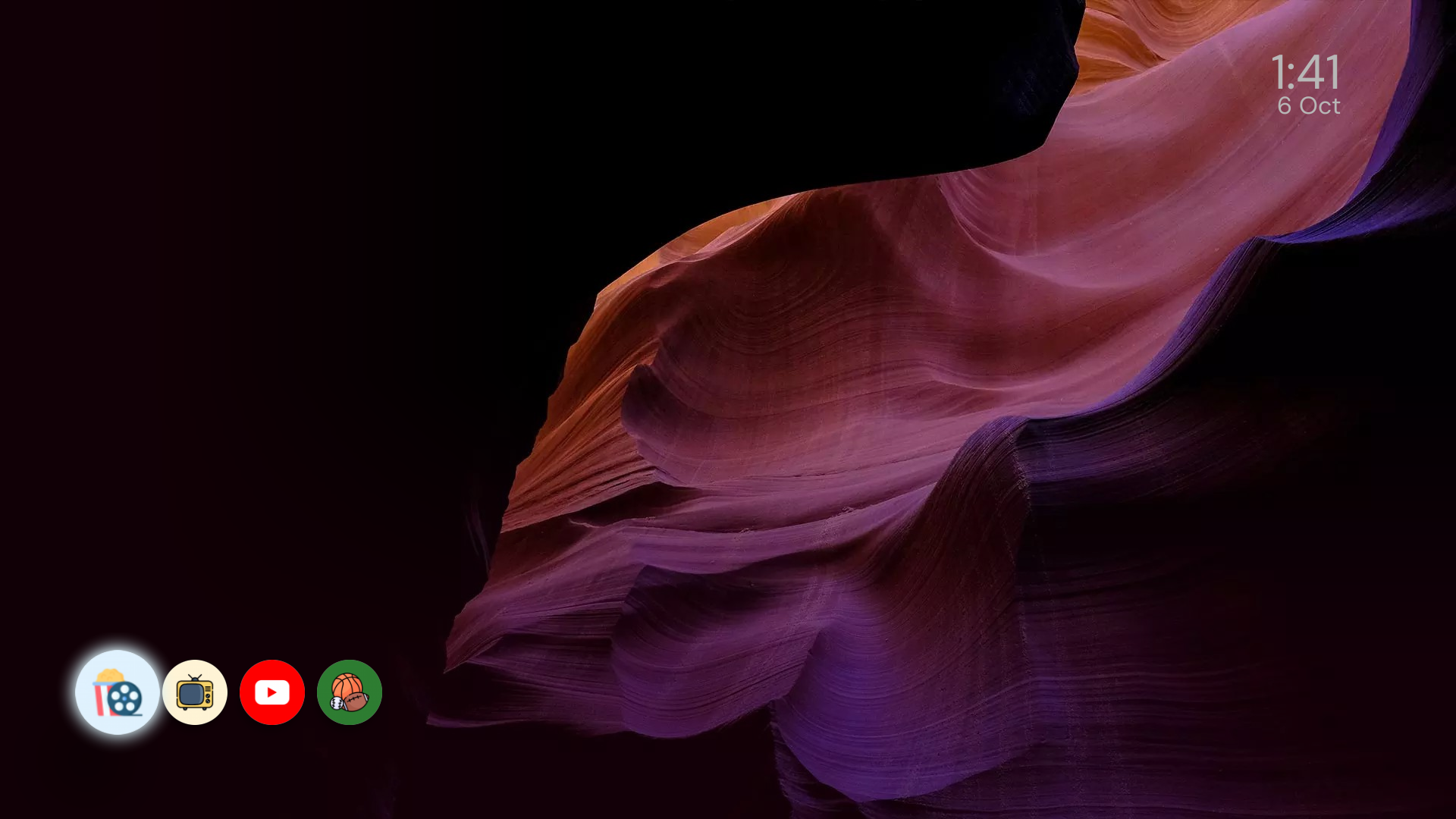
- Projectivy Launcher (for a cleaner home screen)
Download APK Files
- On your computer or phone, visit the following links and download the APK files:
- TizenTube (ad-free YouTube) & TizenTube Launcher
- SportzX (live sports) & SportzX Launcher
- Nuvio (movies/shows) & Nuvio Launcher
- Sparkle TV (live TV) & Sparkle TV Launcher
- Projectivy Launcher Setings File
- Install LocalSend on your computer or phone.
Transfer & Install APKs
- Use LocalSend on both your TV and your other device.
- Make sure both are on the same Wi-Fi network.
- Set your TV to Receive and your other device to Send.
- Send the downloaded files to your TV.
- On your TV, open File Manager+ and install the APKs from your Downloads folder.
- Allow permission to install from unknown sources if prompted.
-
Set Up Projectivy Launcher
Section titled “Set Up Projectivy Launcher”- Open the Projectivy Launcher app.
- In the settings:
- Enable Accessibility Service.
- Import the settings file you downloaded (use File Manager+ to locate it).
- Within the Projectivy settings, set your preferred wallpaper.
Projectivy Premium users can use animated wallpapers such as Floating Cat or Swimming Dog
All done! 🎉
Section titled “All done! 🎉”Enjoy your movies, shows, live TV, and sports.
Extra Recommended Settings
Section titled “Extra Recommended Settings”In addition to the setup above, enable one more tweak for a smoother, snappier experience:
- Enable Stay Awake
-
Turn on Developer Options
Section titled “Turn on Developer Options”- Open Settings → System → About.
- Locate Android TV OS build (or Build number) and press the select button 7 times. You’ll see a confirmation that developer options are enabled.
- Go back to Settings → System → Developer options.
-
Enable Stay Awake
Section titled “Enable Stay Awake”In Developer options, turn on Stay awake (this keeps the screen from sleeping).